Health & Troubleshooting
Last updated 2 months ago
This guide covers routine health checks and the most common support issues for the Gravity Forms -> Dynamics 365 integration.
Open the plugin settings page
In WordPress Admin, open:
- Gravity Forms -> Settings -> DOWO D365 Add-On
- Direct URL:
/wp-admin/admin.php?page=gf_settings&subview=dowo-d365-addon
Use the Test Connection button
The Test Connection button is your first diagnostic step.
- Save your settings first.
- Click Test Connection.
- Review the output in the result area.
What it validates:
- Azure AD authentication (token request)
- Dynamics WhoAmI API access
- Realtime Marketing form access
- Browser-side CORS access to the capture endpoint
Expected success signals:
- Connected to Azure AD
- Authenticated User ID and Organization ID shown
- Realtime Marketing forms found
- CORS passed message with an HTTP status
If any step fails, resolve that error before testing form submissions.
Set up weekly health alerts by email
You can configure automatic weekly monitoring from the plugin settings page.
- Go to Monitoring and Alerts.
- Enter Health Check Alert Email.
- Save settings.
Behavior:
- The health check runs weekly on Monday at 9:00 AM (site timezone).
- An email alert is only sent if a check fails.
- If the email field is blank, the weekly check is disabled.
Health checks include:
- Azure token retrieval
- WhoAmI API check
- Realtime Marketing forms API access
- Server-side CORS preflight validation
Common issues and fixes
1) TXT validation fails in Dynamics Domains
Symptoms:
- Domain verification remains pending or fails in Dynamics 365 Email Marketing -> Domains.
Fix checklist:
- Confirm the TXT record name/host exactly matches the value shown by Dynamics.
- Confirm the TXT record value exactly matches, with no extra spaces/quotes beyond what DNS provider requires.
- Confirm the record is added to the correct DNS zone (root domain vs subdomain).
- Wait for DNS propagation and retry Verify.
- Use an external DNS lookup tool to confirm the TXT record is publicly visible.
2) CORS blocked during test
Symptoms:
- Test Connection shows API auth success, but browser CORS check fails.
- Frontend submissions fail in browser console/network with CORS errors.
- The browser console shows:
Access to resource at 'https://public-gbr.mkt.dynamics.com/api/v1.0/orgs/<org-id>/landingpageforms'
from origin 'https://www.example.com' has been blocked by CORS policy: Response to preflight request
doesn't pass access control check: No 'Access-Control-Allow-Origin' header is present on the
requested resource.
Check the URL in the error first. A missing Access-Control-Allow-Origin header does not always mean the domain is misconfigured. Dynamics returns CORS headers only for a valid submission route, and the valid route ends with the form ID:
.../orgs/<org-id>/landingpageforms/forms/<form-id>     <- correct, returns CORS headers
.../orgs/<org-id>/landingpageforms                     <- not a submission route, no CORS headers
Microsoft's d365mktformcapture.submitForm(captureConfig, payload) builds the target as `${FormApiUrl}/forms/${FormId}`. The FormApiUrl value in a generated capture snippet is only the base; the form ID segment is appended by the library. Posting to the base URL returns a non-CORS error response, and the browser reports it as the message above even when the domain is correctly allow-listed and verified.
Causes, in the order worth checking:
- The request went to the base URL without
/forms/<form-id>. Confirm the URL in the console error ends with a form ID. - The request was sent with credentials. See the variant below.
- The origin is not on the Dynamics allow list. Dynamics returns an
Access-Control-Allow-Originheader only for origins that are verified domains with External Form Hosting enabled.
Variant: Access-Control-Allow-Credentials must be 'true'
... has been blocked by CORS policy: The value of the 'Access-Control-Allow-Credentials' header
in the response is '' which must be 'true' when the request's credentials mode is 'include'.
This one means the URL and the domain are both correct — the preflight was answered, and rejected only because the request asked to send credentials. D365's capture endpoint returns Access-Control-Allow-Origin, Access-Control-Allow-Methods and Access-Control-Allow-Headers, but never Access-Control-Allow-Credentials, so any credentialed cross-origin request to it fails by design.
The usual source is navigator.sendBeacon, which always sets the request's credentials mode to include and cannot be configured. Beacon is an attractive way to survive a post-submit redirect, but it cannot be used against this endpoint with a JSON payload. Use fetch with keepalive: true and credentials: 'omit' instead — same survives-unload guarantee, and it can be told not to send credentials.
Note that navigator.sendBeacon returns true for a request that is later dropped: the return value means "queued for delivery", not "delivered". Any success logging based on it will report submissions that never arrived.
Why a preflight happens at all: Microsoft's FormCapture.bundle.js returns contentType: "application/json" from SerializedForm.build(), and application/json is not a CORS-safelisted content type. Every capture POST is therefore preflighted with OPTIONS, and the whole submission depends on that preflight being answered.
How it shows up:
- The submission is lost silently from the site's point of view. The primary send path is
navigator.sendBeacon(includes/class-d365-submission.php), which gives no failure callback, so a blocked preflight produces no visible error on the page and no Dynamics record. The console message above is often the only signal. - Gravity Forms still records the entry normally, so entries exist locally with nothing arriving in Dynamics. Do not read a healthy GF entry list as evidence that capture is working.
Fix checklist:
- In Dynamics 365, open Email Marketing -> Domains.
- Add the exact website domain hosting the Gravity Form.
- Enable:
- External Form Hosting
- Form Prefill
- Real-time Journeys
- Add and verify the required TXT DNS record.
- Re-run Test Connection.
Match the origin exactly. Read the origin out of the console error and compare it character for character with the Domains entry:
wwwcounts.example.comandwww.example.comare different origins. Allow-listing the apex domain does not cover thewwwhost; add whichever one the site actually serves, or both.- Subdomains count. Staging and dev hosts (for example
dev.example.com) need their own entry. A commonly missed case is a working production domain while the dev or staging site fails on the same Dynamics environment. - Scheme counts. The allow-listed entry must correspond to the
https://origin the browser reports. - Verification must be complete. A domain that is added but still pending TXT verification is not on the allow list yet.
Confirm which origin is being sent: the health check uses the WordPress home_url() value as the Origin header (helpers/cron-health-check.php). If WordPress Address and Site Address are set to a different host than visitors actually use, the check and the real submissions test different origins.
Check the preflight directly. This reproduces the browser's OPTIONS request without a browser, so it can be run from any machine:
curl -s -o /dev/null -D - -X OPTIONS \
  "https://public-gbr.mkt.dynamics.com/api/v1.0/orgs/<org-id>/landingpageforms/forms/<form-id>" \
  -H "Origin: https://www.example.com" \
  -H "Access-Control-Request-Method: POST" \
  -H "Access-Control-Request-Headers: content-type" | grep -i "^HTTP/\|access-control"
An allow-listed origin returns HTTP/2 204 with access-control-allow-origin echoing that exact origin. The same request from a non-allow-listed origin also returns 204 but with no access-control-allow-origin header, so the presence of that header is the signal, not the status code. Swap the Origin value to test www and non-www separately.
Include the /forms/<form-id> segment when running this. Against the base landingpageforms URL the endpoint answers HTTP/2 405 with no CORS headers for every origin, including correctly configured ones, which makes a healthy domain look broken.
Region note: the plugin is hardcoded to the UK region. The capture endpoint public-gbr.mkt.dynamics.com appears in includes/class-d365-submission.php, helpers/ajax-admin-api.php, helpers/cron-health-check.php, and helpers/d365-fields.php, and the Microsoft capture bundle is loaded from the /gbr/ CDN path in dowo-gf-d365.php. If the Dynamics environment is hosted in a different geography, that host will not serve this organisation and no CORS headers come back, which surfaces as this same error even when the domain is correctly allow-listed.
Microsoft confirms this is the cause of CORS failures on the submission endpoint: The call to the submission endpoint fails with a CORS error and Domain authentication.
3) Integration suddenly stops working (client secret expiry)
Symptoms:
- Previously working integration starts failing auth.
- Test Connection returns an auth/token error.
Cause:
- Azure App Registration client secret expired.
Fix:
- In Azure Portal, open App Registrations -> your app -> Certificates and Secrets.
- Create a new client secret.
- Copy the secret value immediately.
- In WordPress plugin settings, update Client Secret.
- Save settings.
- Run Test Connection again.
Recommended practice:
- Set a calendar reminder before secret expiry.
- Rotate secrets during business hours and retest immediately.
4) 403 from Dynamics after successful Azure auth
Symptoms:
- Test shows Azure authentication succeeded but Dynamics API returns 403.
Fix checklist:
- Ensure the Azure app is added as an Application User in Dynamics.
- Confirm the correct environment/org is selected.
- Confirm required role/permissions are assigned.
5) Connected but no usable forms found
Symptoms:
- Connection works but no usable Realtime Marketing forms are returned.
Fix checklist:
- Confirm forms exist and are active in the same Dynamics environment.
- Confirm you are using the correct Resource URL in plugin settings.
- Create/publish a test marketing form and run Test Connection again.
6) "The user is not a member of the organization" (0x80072560)
Symptoms:
- Test Connection returns:
❌ Unexpected WhoAmI response: {"error":{"code":"0x80072560","message":"The user is not a member of the organization."}}
Cause:
- Azure AD authentication succeeded, but the Azure app has not been added as an Application User in the Dynamics environment, so Dynamics does not recognise it. The Configure Dynamics setup steps were not completed.
Fix:
- Follow SETUP.md -> Configure Dynamics, steps 1-7.
- In Power Platform Admin Centre, go to Manage -> Environments -> Settings -> Users & Permissions -> Application Users.
- Click New App User, add the app created in Azure, and confirm the App ID matches the Client ID in plugin settings.
- Select the correct Dynamics 365 organisation and assign the System Administrator role.
- Re-run Test Connection.
Also check:
- The Resource URL in plugin settings points at the same environment the Application User was added to. An app user added to one environment will still fail against another.
- The Tenant ID matches the tenant that owns the Dynamics environment.
7) 404 "Resource not found for the segment 'msdynmkt_marketingforms'" (0x80060888)
Symptoms:
- Test Connection returns:
❌ Authenticated with Azure AD, but failed to access Dynamics API. HTTP 404: {"error":{"code":"0x80060888","message":"Resource not found for the segment 'msdynmkt_marketingforms'."}}
Cause:
- Authentication and the WhoAmI check both passed, but the Realtime Marketing form capture tables do not exist in this environment. Form Capture has not been enabled.
Fix:
- Follow SETUP.md -> Configure Dynamics, steps 8-12.
- Open your Dynamics 365 instance (for example
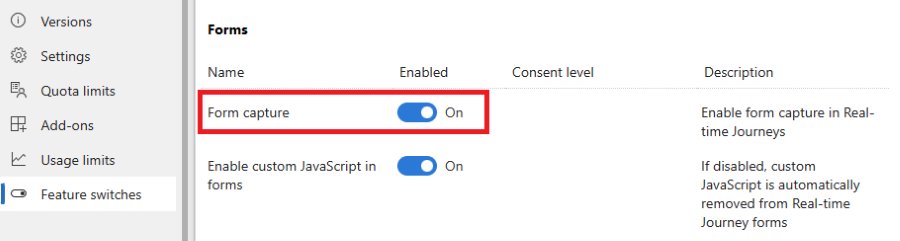
https://yourorg.crm11.dynamics.com/). - Go to Settings -> Feature Switches -> Forms.
- Turn Form capture On and click Save.
- Re-run Test Connection.
Also check:
- Dynamics 365 Customer Insights - Journeys (Real-time Marketing) is installed in this environment. Without it the feature switch and the
msdynmkt_tables will not be present. - The DynamicsMKT_Forms solution is version 1.1.35355 or higher. Form capture requires it, and trial/newly provisioned environments are not always on the latest version. If the Form capture toggle is not shown under Feature Switches at all, update Customer Insights - Journeys first.
- The Resource URL points at the environment where Real-time Marketing is installed.
- Feature switch changes can take a few minutes to apply; wait and retest before assuming failure.
Reference: Enable form capture feature switch.
8) Submissions recorded inconsistently on forms with a redirect confirmation
Symptoms:
- Test Connection passes and some submissions reach Dynamics, but entries on a form using a Redirect confirmation are missing or intermittent.
Cause:
- A page redirect immediately after submit causes the browser to cancel the pending capture request. Microsoft documents this behaviour for form capture generally.
How this plugin handles it:
- On D365-enabled forms, redirect confirmations are intercepted. The visitor stays on the page with an on-page confirmation message, and the redirect URL is opened in a new tab so the capture script can finish. See
includes/class-d365-submission.php.
Fix checklist:
- Confirm the form has a saved DOWO D365 feed with both a selected Dynamics form and at least one field mapping. The interception only applies when both are set; without them the redirect fires normally and the capture can be cancelled.
- Check the browser popup blocker is not silently blocking the new tab.
- If a custom theme or plugin also filters
gform_confirmation, confirm it is not overriding this behaviour.
Reference: My form redirects to a new page after submission and the submission is inconsistently recorded.
Reference
- Capture forms in Customer Insights - Journeys - the official form capture documentation, including Microsoft's own troubleshooting section.
- Enable form capture feature switch
- Domain authentication
- SETUP.md - full plugin configuration steps.